

For questions according the MPC-Mod-Synth visit https://mpctoolkit.com/forum/forum/mpc-mod-synth/ | Community Presets
Start with a sound. Follow it somewhere new.
MPC Mod-Synth turns your Android device into a modular synthesizer and live effects processor. Place modules where you want them, connect their audio and control signals, and build an instrument that responds the way you imagine.
Play from the on-screen keyboard or connect a MIDI controller. Shape a bass with envelopes and filters, add movement with modulation, or connect an audio interface and build a custom guitar effects chain. Explore wah, high-gain distortion, delays, reverbs and more—then add an entire effect chain to an existing synth patch.
Find a starting point in 69 factory presets. Try a glassy arpeggio, an acid-inspired pulse, or a patch with separate melody and kick sequencers running from one clock. Change the notes, reshape the kick, or combine different sequence lengths to create patterns that keep evolving.
Bring your own short WAV files into the Sampler. Loop, reverse and transpose them, adjust the playback region, and send them through your patch. Save the sample inside your native patch so others can explore the same starting point.
For hands-on performance, use MIDI Learn, MIDI output, external MIDI Clock synchronization and explicit MIDI note/gate routing with up to eight voices. Keep every voice simple—or give each one its own sound path.
Working with ZOIA files? Import supported patches and explore export-compatible configurations in the optional ZOIA mode. Conversion reports make the supported mappings and remaining limitations visible.
Build it. Play it. Share the patch.
FEATURE HIGHLIGHTS
• Freely arranged modules with touch editing and two-finger zoom.
• Synthesizers, live effects, control utilities and audio analysis in one workspace.
• 69 factory presets, including guitar effects and dual-sequencer patterns.
• Native step sequencing with up to 32 steps and shared clock routing.
• WAV playback with looping, reverse, pitch control and embedded sample sharing.
• On-screen keyboard, MIDI Learn, MIDI output and external MIDI Clock sync.
• Explicit MIDI note/gate banks with 1–8 voices.
• Insert factory effect chains into existing synth patches.
• Save and share editable native patches.
• Selected ZOIA import/export mappings with an optional restricted editing mode.
User Guide
Build instruments. Shape effects. Connect your ideas.
Welcome
MPC Mod-Synth is a modular synthesizer and live effects processor for Android. Build an instrument from freely arranged modules, connect audio and control signals, play it from the on-screen keyboard or MIDI, and save your work as an editable patch.
This guide describes version 0.9.13, a development preview. It includes 69 factory presets. Device performance and available audio settings depend on your Android device and interface. ZOIA file exchange supports selected modules and configurations; it is not a complete emulation of the pedal.
1. Your first sound
- Open Factory presets and choose a synth preset.
- Play the keyboard at the bottom of the screen. Use Oct − and Oct + to change its range.
- Adjust your Android media volume and the patch’s Audio Out → Master.
- Tap Fit to see the patch. Zoom in to reach individual controls.
- Tap Save to keep your edited version as a
.mpcpatchfile.
For instant rhythmic playback, choose Sequencers → SEQ Glass Arp. Sequencer presets start without held notes or live audio input. Set their Clock’s Run to 0 to stop.
Loading a factory preset replaces the current patch. Save a version you want to keep before switching.
2. Working on the canvas
| Action | How |
|---|---|
| Add a module | Tap + Module, then choose a category and module. |
| Move a module | Drag its header. The body and parameter controls are for editing. |
| Move around | Drag an empty area of the canvas. |
| Zoom | Pinch with two fingers, or use − and +. Fit frames the patch. |
| Connect modules | Tap an output port, then a compatible input port. You can also start at the input. |
| Cancel a connection | Tap the background or the same port again. |
| Edit a cable | Tap the cable to select it, then change its amount or use Remove cable. |
| Delete a module | Tap its x button. Its connected cables are removed too. |
| Recover an edit | Use Undo or Redo. |
Audio ports carry sound. Control/CV ports carry values such as pitch, gate, envelope or modulation. A gate is an on/off control signal. Match the signal type and read the port label; control signals can represent different ranges.
A patch can contain up to 128 modules and 512 connections. These are editing limits, not a guarantee that every possible patch will run in real time on every phone.
3. Build a playable synth
This example uses one explicit MIDI voice. Add MIDI Notes In, Oscillator, ADSR, VCA and Audio Out. Set MIDI Notes In to one voice and match its MIDI channel to your controller; use channel 1 for a first test.
| From | To |
|---|---|
| MIDI Notes In: Note 1 | Oscillator: Pitch |
| MIDI Notes In: Gate 1 | ADSR: Gate |
| Oscillator: Audio | VCA: Audio |
| ADSR: Envelope | VCA: Level |
| VCA: Audio | Audio Out: Left / Mono |
The oscillator creates sound, the ADSR shapes each note, and the VCA applies that envelope to its volume. Adjust Attack for a soft entrance, Decay and Sustain for the body of the note, and Release for its tail.
Connecting an oscillator straight to Audio Out does not provide envelope-controlled note endings. Keep the ADSR/VCA path when you want notes to stop naturally.
Explicit polyphony: MIDI Notes In provides 1–8 Note/Gate pairs. Add an oscillator, envelope and VCA path for each voice, then combine the audio with mixers. Increasing Voices exposes more pairs; it does not automatically build those sound paths. Disconnect higher voice outputs before reducing Voices.
MIDI In (Auto) is the alternative used by existing automatic-voice synth presets. Its voice handling differs from the explicitly wired MIDI Notes In module.
4. Live guitar and external audio
- Connect an Android-compatible audio interface and your instrument.
- Open Settings → Audio / EFX. Tap Refresh devices if you connected the interface after opening the app.
- Enable Enable audio input / live EFX and grant Android microphone permission if requested.
- Select the available audio device and the correct input source. For a guitar on channel 1, start with Input: Channel 1 to both sides.
- Load a preset from Guitar Effects. Try GTR Tight Metal, GTR Funk Auto Wah or GTR Metal Lead Echo.
- Watch the Audio In module meter and the Settings input/output meters while playing.
The signal path must reach Audio Out: Audio In → effects → Audio Out. The input meter confirms incoming audio; it does not by itself prove that an effect reaches the output.
If the clean instrument overwhelms the effect, check the interface’s direct-monitoring mix. Direct monitoring can play a separate dry signal alongside the app. Keep USB input routing enabled when changing monitoring; muting the signal sent to the phone also silences the app input.
Drive: turn up Drive for more distortion and use Output to balance loudness. Mix blends the processed signal. The magenta Drive CV input is optional modulation: connect an LFO, Envelope Follower or MIDI CC In Control output. Leave it unconnected to use the Drive control alone.
For an envelope-controlled wah, adjust the Envelope Follower’s Sensitivity to your guitar level. Pedal Wah uses MIDI CC 11 on channel 1 by default; MIDI Learn can change this.
5. Add an effect chain to an existing synth
- Open the synth patch you want to keep.
- Tap + FX → Before Audio Out #….
- Choose an effect category and preset.
- Play the synth and adjust the inserted effects. Save the combined patch.
The app reroutes the signal feeding the selected output through the inserted chain:
Audio Out is a destination, so it cannot be connected as a source to an effect input. The insertion command handles this routing for you. It uses the synth audio and does not require live external input. Undo removes the insertion as one operation. The + FX menu offers eligible factory effect chains.
6. Sequencers and rhythm
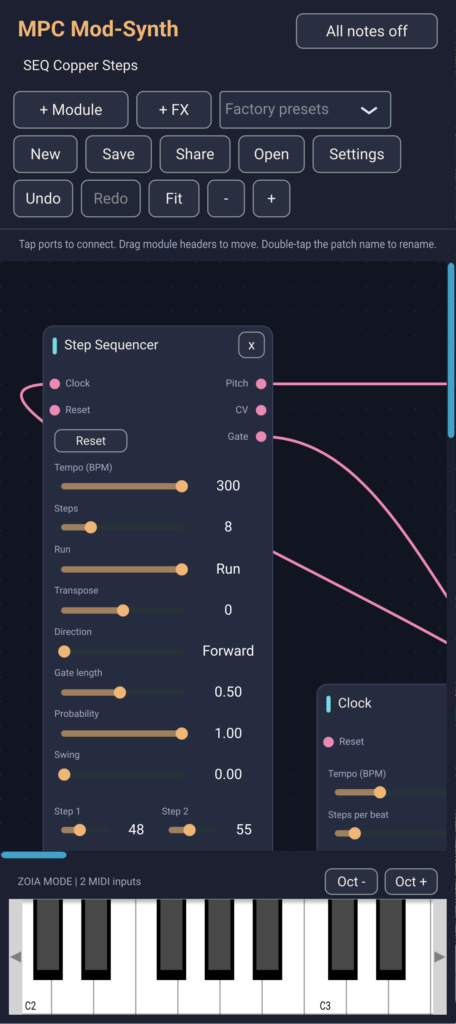
Step Sequencer supports 1–32 steps. A step value is 0–127. Pitch outputs a MIDI note number with Transpose applied; CV outputs the untransposed value divided by 127; Gate triggers an envelope or another control input.
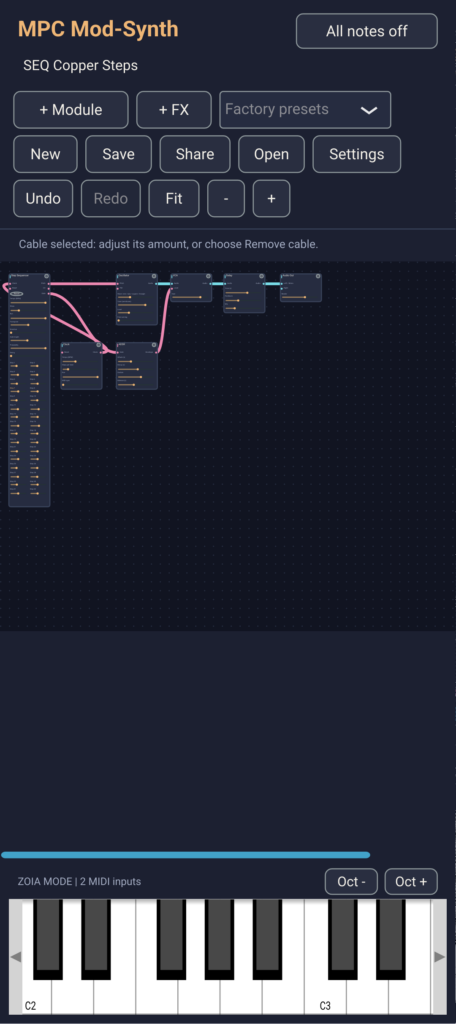
Connect a Clock output to the sequencer’s Clock input for a shared timing source. Set the Clock’s Tempo (BPM) and Steps per beat. Without a Clock cable, the sequencer’s own tempo advances steps. Reset queues step 1 for the next rising clock edge. Run = 0 stops that sequencer and lowers its gate.
Direction, Gate length, Probability and Swing provide further variation. Some options are native-only and will block ZOIA export; the export report explains the restriction.
| New preset | What to explore |
|---|---|
| SEQ Glass Arp · 100 BPM | A melodic sequence with delay and reverb. |
| SEQ Acid Pulse · 124 BPM | A 16-step bass sequence with envelope-driven filtering. |
| SEQ Melody and Kick · 112 BPM | Separate eight-step melody and kick sequencers driven by one Clock. |
| SEQ Seven over Sixteen · 108 BPM | A seven-step melody against a sixteen-step kick pattern, sharing one Clock. |
Editing the dual-sequencer presets: change the shared Clock’s tempo to speed up both parts. In the melody sequencer, edit the note numbers. In the kick sequencer, 127 means hit and 0 means rest: its CV is multiplied by its Gate to trigger the kick envelope. This rest behavior comes from the patch wiring; a zero-valued step is not a universal rest in every sequencer patch.
The kick is synthesized with an oscillator and envelope. Change the kick envelope’s Decay or the oscillator’s tuning to reshape it. Stop the shared Clock to stop both tracks.
7. MIDI control and synchronization
Choose an input device and receive channel in Settings → MIDI. Select All channels while checking a connection, then narrow it if needed. Module-specific MIDI channel settings must also match. The bottom keyboard works independently of the external receive-channel filter.
MIDI Learn
- Add MIDI CC In.
- Tap Learn CC on its card.
- Move the desired hardware knob or pedal. The next accepted CC sets the module’s channel and controller number.
- Connect its Control output to a compatible modulation input and set the cable amount.
- Save the patch to retain the assignment.
Learn targets the CC In module, not an arbitrary on-screen parameter. Use a Slew Limiter if the modulation needs smoothing. Bipolar changes the output range from 0…1 to −1…1.
MIDI output
Select an output device in Settings. MIDI Note Out takes Pitch, Gate and Velocity and sends one note line; use multiple modules for independent lines. MIDI CC Out sends its Control value as a MIDI controller message. The optional Forward notes / CC / clock to output setting forwards accepted messages. Enabling forwarding alongside Note Out can produce duplicate notes.
Follow external MIDI Clock
Enable the MIDI source, set the Clock module’s MIDI sync to 1 and leave Run at 1. Incoming Clock supplies timing; Start resets, Stop stops gates, and Continue resumes. Connect that Clock to the sequencers you want synchronized. Effects do not all become tempo-synced automatically. Song Position Pointer seeking and an internally generated outgoing MIDI master clock are not implemented.
Use All notes off for stuck notes. A running sequencer may trigger again; stop its Clock when you want it to remain silent.
8. WAV playback and looping
- Load Special Effects → WAV Tape Playground, or add a Sampler to your patch.
- Tap Load WAV on the Sampler and choose a file.
- Set Playback: stop / play to 1. Set it to 0 to stop manual playback.
- Enable Loop for repetition. Use Restart to play again from the start point.
- Connect Sampler Audio to effects and Audio Out.
Use Start and End to select the playback region, Reverse to play backwards, and Tune to transpose. Root note sets the pitch reference for the Pitch input. Trigger starts playback; Gate mode allows the trigger gate to control playback duration.
Supported files: mono or stereo WAV, up to ten seconds, 8–192 kHz. Stereo is mixed to mono and sample rates above 48 kHz are reduced internally. The patch has a combined sample-memory limit. Imported sample data is embedded in native saved/shared patches.
The Sampler plays files; it does not record incoming audio. Use the separate Looper for live recording, playback, overdubbing and reverse experiments. Looper recordings are runtime audio and are not included in saved patches.
The current Sampler is a native app feature. Its sample-asset workflow is not compatible with ZOIA export.
9. Finding modules
| Category | Purpose |
|---|---|
| Interface / MIDI | Audio and MIDI connections, performance controls and interface modules. |
| Audio | Sound sources, filters, mixing, amplification and audio routing. |
| Control / CV | Envelopes, modulation, sequencing, timing and control utilities. |
| Analysis | Extract controls from sound, including envelope, pitch and onset detection. |
| Effects | Distortion, delays, reverbs, modulation, dynamics and other sound processing. |
Try Pushbutton for momentary control, Stompswitch for performance switching, and Pixel for a visual response to CV or audio. Pitch Detector works best as a starting point for single-note tracking; Onset Detector reacts to attacks. Module names may resemble hardware concepts, but algorithms and parameter curves are the app’s own implementation.
10. Saving and sharing
Save / Open: use .mpcpatch for your editable app patch. It stores modules, positions, parameters, connections, learned CC assignments and embedded Sampler data. Audio-device choices are separate; Looper recordings and a rendered performance are not stored.
Share: on Android, choose a destination in the system share sheet. The recipient saves the attachment, opens MPC Mod-Synth and taps Open. Use a compatible app version. On the Windows preview, save the patch and attach it manually.
Exchange packages: Settings → ZOIA also offers Save/Open exchange package using .mpczoia. This is an app exchange format, not a hardware patch file.
There is no built-in WAV performance export or oscilloscope-video export in this release. An external recording can demonstrate a sound; share the editable patch alongside it.
11. ZOIA import, export and mode
Import a hardware patch
- Save your current app patch.
- Open Settings → ZOIA → Import ZOIA .bin….
- Select the file and read the IMPORT report.
- If translated successfully, play and inspect the converted patch. Save it as a native patch.
BLOCKED means the conversion could not be completed and the current patch remains unchanged. Unsupported module types, options or saved states can prevent import. The report describes the last attempt and remains visible until cleared; use Clear import result to remove an old report.
Save unchanged original .bin… preserves the imported bytes. It does not convert your current edits back to hardware. Insert ZOIA FX .bin… attempts to insert a supported imported effect chain instead of replacing the whole patch.
Build toward export
Enable ZOIA mode – restrict edits to exportable patches to limit modules and options to the implemented export mappings. Normal MPC mode keeps the app’s full feature set. Some imported patches can only be used with ZOIA mode off.
Finish the signal routing, inspect EXPORT CURRENT PATCH, choose a slot from 000–063 and tap Export ZOIA .bin…. Unsupported configurations are blocked rather than silently omitted.
Auto-voice export applies only to MIDI In (Auto). Mono is the simplest starting point. MIDI Notes In exports its own 1–8 voice setting and explicitly connected paths instead.
Compatibility boundary: exportable does not mean identical sound or guaranteed pedal CPU capacity. Algorithms, timing, parameter ranges and voice behavior can differ. Sampler export, some MIDI options, certain saved states and converted feedback graphs remain unsupported. Test exported files on the intended hardware. Patch Atelier (12) previews only the first MIDI voice and cannot validate all polyphonic exports.
12. Troubleshooting
| Symptom | Check |
|---|---|
| No synth sound | Android media volume, selected output, Audio Out Master, audio cables and envelope/VCA routing. Match MIDI device/channel. Try a factory synth with the bottom keyboard. |
| No external input | Enable live EFX, grant microphone permission, select the correct interface/input channel and tap Refresh devices. Confirm the interface is sending audio to USB. |
| Input meter moves, no processed sound | Trace Audio In through effects to Audio Out. Check output device, volume and effect Mix. An input reading alone does not confirm the whole path. |
| Effect seems weak | Check direct monitoring, wet/dry Mix, Drive or modulation depth, and input level. Balance the processed output against any separate dry monitoring. |
| Crackles or intermittent clicks | Increase the available buffer size one step and compare the same patch. Reduce heavy effects/voices and close competing audio apps. USB, Android and interface behavior also matter. |
| Noticeable latency | Try a smaller stable buffer and a wired audio path. Smaller buffers need more processing headroom; app buffer size is only part of total latency. Bluetooth adds delay. |
| Silent Sampler | Load a valid WAV, set Playback to 1 or provide a Trigger, check Start/End and connect Audio. WAV Tape Playground starts without a sample. |
| ZOIA import leaves the old patch visible | Read the last IMPORT report for BLOCKED reasons. Disable ZOIA mode if the converted patch needs native-only modules. Unsupported conversion is not loaded partially. |
| A module is disabled in the browser | Check ZOIA mode. Export restrictions may exclude the module or its current configuration. |
When reporting a problem, include the app version, device/interface, sample rate and buffer size, patch file, exact steps, and whether input/output meters move. Audio performance and interface stability require testing on the actual device.
Help and version notes
Open Settings → Website / Help & presets or visit mpctoolkit.com/mpc-mod-synth/.
Guide edition: 0.9.13 · 3 October 2026. Prepared from the current app source and project documentation. Earlier project notes may describe older limits; this guide uses the current 128-module/512-connection limits and 32-step native sequencer.
Soon available on Google Play
MPC Mod-Synth — Module Reference
MPC MOD-SYNTH · MODULE REFERENCE · 0.9.21
Build your sound,
one module at a time.
A practical English guide to all 93 modules: what they do, how to connect them, and which controls shape the result.
Updated 4 October 2026. Names, ports, ranges and defaults are taken from the current app definitions.
Before you patch
Audio ports carry sound. Control ports carry pitch, gates, envelopes and modulation. Connect matching types; cable amount scales the connection. A control input is not automatically an audio input, even if its name is FM or Drive.
Pitch units matter. Native Pitch/Note ports generally use MIDI note numbers (60 = C4). Pitch CV ports use the normalized convention: 0 = MIDI note 21, and 0.1 = one octave. Use Pitch / CV to convert between them. Other control signals are commonly 0–1 or bipolar -1–1; consult the module description.
A basic synth: MIDI In Pitch → Oscillator Pitch; MIDI In Gate → ADSR Gate; Oscillator Audio → VCA Audio; ADSR Envelope → VCA Level; VCA Audio → Audio Out Left / Mono.
A guitar effect: Audio In → Noise Gate → Drive → Cabinet Sim → Delay → Audio Out. Use FX Input instead of Audio In for a reusable effect chain that can be inserted into a synth patch.
MPC and ZOIA modes: this guide describes the app. ZOIA mode limits edits to supported export configurations; an available module does not imply every configuration is exportable. Import proxies and approximations are labelled below. Consult the export report for the actual patch. The app does not guarantee the pedal’s sound or CPU behavior.
Wavetable landscape: blue curves show a reduced set of frames; the amber curve shows the current interpolated position, including Position CV and macro modulation. The editor redraws at up to 25 fps when visible and changing. The display uses the full-band bank shape, not the final audio waveform. In a polyphonic patch it represents the last evaluated active voice. When idle, it shows the Position knob. Existing knobs still edit the sound; the landscape itself is a display.All categoriesInterface / MIDIAudioControl / CVAnalysisEffectsExpand / collapse controls
Interface / MIDI#01
MIDI In (Auto)
Converts the touch keyboard and incoming MIDI notes into per-voice Pitch, Gate, Velocity and Mod wheel signals. Start with Pitch to Oscillator, Gate to ADSR, and ADSR to VCA Level; the native synth engine provides up to eight voices.InputsNoneOutputsPitch (control), Gate (control), Velocity (control), Mod wheel (control)
No parameter knobs. Operation is determined by the connected signals.
Interface / MIDI#10
Audio Out
Routes the patch to the selected audio device. Left / Mono is copied to the right when Right is unconnected. Master controls the final level; this is the destination for your completed synth or effects chain.InputsLeft / Mono (audio), Right (audio)OutputsNoneControls and defaults (1)
| Control | Range | Default |
|---|---|---|
| Master | 0 – 1 | 0.65 |
Interface / MIDI#11
Audio In
Brings the selected external audio input into the patch as Left, Right and Mono. Enable and configure input in Settings > Audio / EFX. The module meters show the input before its Gain knob; route its audio through effects to Audio Out.InputsNoneOutputsLeft (audio), Right (audio), Mono (audio)Controls and defaults (1)
| Control | Range | Default |
|---|---|---|
| Gain | 0 – 2 | 1 |
Interface / MIDI#29
MIDI CC In
Receives one MIDI continuous controller on the selected channel. Control is normally 0–1; Bipolar maps it to -1–1. Use Learn CC to select a controller by moving it, then connect Control to a modulation input.InputsNoneOutputsControl (control)Controls and defaults (3)
| Control | Range | Default |
|---|---|---|
| MIDI channel | 1 – 16 | 1 |
| CC number | 0 – 127 | 1 |
| Bipolar | 0 – 1 | 0 |
Interface / MIDI#41
MIDI CC Out
Converts a 0–1 control signal into MIDI CC values 0–127 on the chosen channel. Select and enable a MIDI output device in Settings. Use it to send LFOs, envelopes or macro movements to external equipment.InputsControl (control)OutputsNoneControls and defaults (2)
| Control | Range | Default |
|---|---|---|
| MIDI channel | 1 – 16 | 1 |
| CC number | 0 – 127 | 74 |
Interface / MIDI#42
MIDI Note Out
Sends MIDI notes from Pitch, Gate and Velocity. Pitch uses MIDI note numbers; a rising Gate starts a note and a falling Gate stops it. Pitch changes during a high gate retrigger the note. This is distinct from MIDI Notes In, which provides 1–8 pairs of note and gate outputs.InputsPitch (control), Gate (control), Velocity (control)OutputsNoneControls and defaults (1)
| Control | Range | Default |
|---|---|---|
| MIDI channel | 1 – 16 | 1 |
Interface / MIDI#63
Pushbutton
A touch control with momentary or latching behavior. Normally zero/one selects its resting polarity. Connect it to gates, switches, reset inputs or a Pixel to make an interactive patch.InputsNoneOutputsControl (control)Controls and defaults (2)
| Control | Range | Default |
|---|---|---|
| Action: momentary / latch | 0 – 1 | 0 |
| Normally: zero / one | 0 – 1 | 0 |
Interface / MIDI#64
Stompswitch
An on-screen switch with momentary or latching behavior and a left/middle/right/external identity. Modules with the same switch identity can be operated together in the app. It represents a control function; it does not create a physical footswitch on the phone.InputsNoneOutputsControl (control)Controls and defaults (3)
| Control | Range | Default |
|---|---|---|
| Action: momentary / latch | 0 – 1 | 1 |
| Normally: zero / one | 0 – 1 | 0 |
| Switch: L / M / R / Ext | 0 – 3 | 0 |
Interface / MIDI#65
Pixel
A visual indicator driven by CV or audio amplitude. Brightness, Source and Colour control its appearance. Use it to show gate activity or levels; it has no signal output and does not route audio onward.InputsControl (control), Audio (audio)OutputsNoneControls and defaults (3)
| Control | Range | Default |
|---|---|---|
| Brightness | 0 – 1 | 0 |
| Source: CV / audio | 0 – 1 | 0 |
| Colour | 0 – 15 | 5 |
Interface / MIDI#66
Keyboard 8
Eight configurable on-screen notes with normalized Pitch CV, Gate and Trigger outputs. Each note also accepts a CV offset. Use Pitch / CV to convert its pitch to MIDI-note units for native oscillators.InputsNote 1 (control), Note 2 (control), Note 3 (control), Note 4 (control), Note 5 (control), Note 6 (control), Note 7 (control), Note 8 (control)OutputsPitch CV (control), Gate (control), Trigger (control)Controls and defaults (8)
| Control | Range | Default |
|---|---|---|
| Note 1 CV | 0 – 1 | 0 |
| Note 2 CV | 0 – 1 | 0.016667 |
| Note 3 CV | 0 – 1 | 0.025 |
| Note 4 CV | 0 – 1 | 0.041667 |
| Note 5 CV | 0 – 1 | 0.058333 |
| Note 6 CV | 0 – 1 | 0.066667 |
| Note 7 CV | 0 – 1 | 0.083333 |
| Note 8 CV | 0 – 1 | 0.1 |
Interface / MIDI#67
UI Button
A momentary UI gate with a separate colour control value, used for imported ZOIA-style patches. Extended range preserves the patch option; this app does not reproduce every hardware button behavior. Use Pushbutton for a native latch.InputsColour CV (control)OutputsGate (control)Controls and defaults (2)
| Control | Range | Default |
|---|---|---|
| Colour CV | 0 – 1 | 0 |
| Extended range | 0 – 1 | 1 |
Interface / MIDI#75
Expression Proxy
A clearly labelled replacement for a hardware expression input. The Expression knob supplies the control value. Assign modulation or use another controller when adapting a pedal patch to the phone.InputsNoneOutputsControl (control)Controls and defaults (1)
| Control | Range | Default |
|---|---|---|
| Expression | -1 – 1 | 0 |
Interface / MIDI#76
Device Control Proxy
Represents selected imported device-control functions with an app proxy. Bypass mode can pass the external input to the app output; Perform can request a fitted canvas view. Aux does not control a real pedal or external device. Review its function when adapting imported patches.InputsControl (control)OutputsNoneControls and defaults (2)
| Control | Range | Default |
|---|---|---|
| Control bias | 0 – 1 | 0 |
| Mode: bypass/aux/perform | 0 – 2 | 0 |
Interface / MIDI#78
MIDI Notes In
Receives notes on one MIDI channel and distributes them to 1–8 explicit Note/Gate pairs. The Voices setting changes the visible outputs; disconnect higher pairs before reducing it. Route each pair to its own oscillator/envelope chain when designing explicit polyphony. Note outputs use MIDI note values.
Ports listed below show the maximum configuration; Voices selects 1–8 Note/Gate pairs.InputsNoneOutputsNote 1 (control), Gate 1 (control), Note 2 (control), Gate 2 (control), Note 3 (control), Gate 3 (control), Note 4 (control), Gate 4 (control), Note 5 (control), Gate 5 (control), Note 6 (control), Gate 6 (control), Note 7 (control), Gate 7 (control), Note 8 (control), Gate 8 (control)Controls and defaults (2)
| Control | Range | Default |
|---|---|---|
| Voices | 1 – 8 | 1 |
| MIDI channel | 1 – 16 | 1 |
Interface / MIDI#93
Phone Motion
Uses phone sensors as modulation: Tilt X, Tilt Y, Shake and Turn. Calibrate in a comfortable neutral position, then adjust Sensitivity, Smoothing and Dead zone. Turn is rotational speed, not compass heading. Unsupported or inactive sensors return toward neutral; the desktop preview has no phone sensors.InputsNoneOutputsTilt X (control), Tilt Y (control), Shake (control), Turn (control)Controls and defaults (9)
| Control | Range | Default |
|---|---|---|
| Enabled | 0 – 1 | 1 |
| Sensitivity | 0.1 – 4 | 1 |
| Smoothing (ms) | 5 – 1000 | 80 |
| Dead zone | 0 – 0.3 | 0.02 |
| Invert X | 0 – 1 | 0 |
| Invert Y | 0 – 1 | 0 |
| Zero X | -1 – 1 | 0 |
| Zero Y | -1 – 1 | 0 |
| Zero turn | -1 – 1 | 0 |
Audio#02
Oscillator
Generates sine, saw, square or triangle waves. Pitch uses MIDI note numbers; Tune transposes in semitones. Enable Free running for clocked or continuously sounding patches, then shape the level with an ADSR and VCA.InputsPitch (control), FM (control)OutputsAudio (audio)Controls and defaults (4)
| Control | Range | Default |
|---|---|---|
| Wave: sine / saw / square / triangle | 0 – 3 | 1 |
| Tune (semitones) | -24 – 24 | 0 |
| Level | 0 – 1 | 0.7 |
| Free running | 0 – 1 | 0 |
Audio#03
Noise
Generates White, Pink, Brown, Blue, Violet or Velvet noise. White is broadband, Pink and Brown are progressively darker, Blue and Violet emphasize higher frequencies, and Velvet uses sparse impulses. Use an envelope and filter for percussion or wind textures; ordinary synth voices require notes to run.InputsNoneOutputsAudio (audio)Controls and defaults (2)
| Control | Range | Default |
|---|---|---|
| Level | 0 – 1 | 0.4 |
| Noise type | White / Pink / Brown / Blue / Violet / Velvet | White |
Audio#06
Low-pass Filter
A resonant low-pass filter that removes high frequencies. Cutoff CV moves the frequency relative to the knob, while Resonance CV adds emphasis near the cutoff. Try ADSR or LFO modulation for a classic subtractive synth.InputsAudio (audio), Cutoff (control), Resonance (control)OutputsAudio (audio)Controls and defaults (2)
| Control | Range | Default |
|---|---|---|
| Cutoff (Hz) | 27.5 – 24000 | 2000 |
| Resonance | 0 – 0.95 | 0.2 |
Audio#07
VCA
Controls audio amplitude using its Level input and Gain knob. With no Level cable it passes audio at the knob gain. Connect an ADSR to Level to make notes open and close smoothly.InputsAudio (audio), Level (control)OutputsAudio (audio)Controls and defaults (1)
| Control | Range | Default |
|---|---|---|
| Gain | 0 – 1 | 0.8 |
Audio#08
Mixer
Adds three audio signals and applies one common Gain. Use it to combine oscillators or parallel effect paths; reduce Gain when combining loud sources.InputsA (audio), B (audio), C (audio)OutputsAudio (audio)Controls and defaults (1)
| Control | Range | Default |
|---|---|---|
| Gain | 0 – 1 | 0.5 |
Audio#12
High-pass Filter
A resonant high-pass filter that removes low frequencies. Use it to reduce rumble before distortion or to thin a layered sound. Cutoff and Resonance accept modulation.InputsAudio (audio), Cutoff (control), Resonance (control)OutputsAudio (audio)Controls and defaults (2)
| Control | Range | Default |
|---|---|---|
| Cutoff (Hz) | 20 – 24000 | 120 |
| Resonance | 0 – 0.95 | 0.1 |
Audio#19
Band-pass Filter
Passes a region around Cutoff while reducing lower and higher frequencies. Resonance makes the selected region more prominent. Modulate Cutoff for vowel-like or wah-like sounds.InputsAudio (audio), Cutoff (control), Resonance (control)OutputsAudio (audio)Controls and defaults (2)
| Control | Range | Default |
|---|---|---|
| Cutoff (Hz) | 27.5 – 24000 | 1200 |
| Resonance | 0 – 0.95 | 0.4 |
Audio#20
Notch Filter
Removes a region around Cutoff while retaining frequencies on either side. Moving Cutoff creates a hollow, sweeping tone. Resonance changes the shape around the notch.InputsAudio (audio), Cutoff (control), Resonance (control)OutputsAudio (audio)Controls and defaults (2)
| Control | Range | Default |
|---|---|---|
| Cutoff (Hz) | 27.5 – 24000 | 1000 |
| Resonance | 0 – 0.95 | 0.3 |
Audio#24
Stereo Pan
Places a mono signal across Left and Right outputs using equal-power panning. Pan CV adds modulation to the knob position. Connect both outputs to Audio Out for stereo movement.InputsAudio (audio), Pan (control)OutputsLeft (audio), Right (audio)Controls and defaults (1)
| Control | Range | Default |
|---|---|---|
| Pan | -1 – 1 | 0 |
Audio#37
Audio Switch
Selects between audio A and B with a short smoothing transition. Select below 0.5 chooses A and higher values choose B. Use it for dry/effect switching or alternate oscillator sources.InputsA (audio), B (audio), Select (control)OutputsAudio (audio)Controls and defaults (1)
| Control | Range | Default |
|---|---|---|
| Select A / B | 0 – 1 | 0 |
Audio#51
Audio Invert
Reverses audio polarity. It is useful in parallel routing, subtraction experiments and phase-related sound design. Polarity inversion alone normally does not sound different on a single isolated signal.InputsAudio (audio)OutputsAudio (audio)
No parameter knobs. Operation is determined by the connected signals.
Audio#52
Sampler
Plays an imported WAV with pitch, trigger, looping, reverse and start/end controls. Root note defines original-speed playback; Tune transposes it. Playback: play starts manual playback, and Gate mode stops playback when the gate falls. Imported audio is converted to mono, limited to ten seconds and embedded in native presets. Sampler export to ZOIA is not supported.InputsPitch (control), Trigger (control)OutputsAudio (audio)Controls and defaults (9)
| Control | Range | Default |
|---|---|---|
| Tune (semitones) | -24 – 24 | 0 |
| Root note | 0 – 127 | 60 |
| Loop | 0 – 1 | 0 |
| Reverse | 0 – 1 | 0 |
| Start | 0 – 0.99 | 0 |
| End | 0.01 – 1 | 1 |
| Level | 0 – 1 | 0.7 |
| Gate mode | 0 – 1 | 0 |
| Playback: stop / play | 0 – 1 | 0 |
Audio#55
Audio Multiply
Multiplies two audio signals directly. Feeding two oscillators creates ring-modulation sidebands; use a VCA instead when the second source is an ordinary control envelope.InputsA (audio), B (audio)OutputsAudio (audio)
No parameter knobs. Operation is determined by the connected signals.
Audio#59
FX Input
Provides an internal entry point for a reusable FX patch, with Left, Right and Mono outputs. Unlike Audio In, it processes connected patch audio rather than the phone interface. Use it when building effects that should be inserted after an existing synth.InputsLeft / Mono (audio), Right (audio)OutputsLeft (audio), Right (audio), Mono (audio)Controls and defaults (1)
| Control | Range | Default |
|---|---|---|
| Gain | 0 – 2 | 1 |
Audio#68
FM Oscillator
A continuously running FM oscillator using normalized Pitch CV, with sine, square, triangle and saw waveforms. Audio FM adds exponential frequency modulation, and Duty CV affects pulse width. Frequency CV is a base offset: 0 corresponds to 27.5 Hz. Optional 2× oversampling increases processing work.InputsPitch CV (control), Audio FM (audio), Duty CV (control)OutputsAudio (audio)Controls and defaults (4)
| Control | Range | Default |
|---|---|---|
| Frequency CV | 0 – 1 | 0 |
| Wave: sine/square/tri/saw | 0 – 3 | 0 |
| Oversample 2x | 0 – 1 | 0 |
| Duty | 0.01 – 0.99 | 0.5 |
Audio#71
Audio Mixer 5
Mixes five audio inputs with independent gain controls in dB. Use it for imported mixer structures or when each sound source needs its own level. Reduce gains to avoid clipping when summing several loud signals.InputsAudio 1 (audio), Audio 2 (audio), Audio 3 (audio), Audio 4 (audio), Audio 5 (audio)OutputsAudio (audio)Controls and defaults (5)
| Control | Range | Default |
|---|---|---|
| Gain 1 dB | -100 – 20 | 0 |
| Gain 2 dB | -100 – 20 | 0 |
| Gain 3 dB | -100 – 20 | 0 |
| Gain 4 dB | -100 – 20 | 0 |
| Gain 5 dB | -100 – 20 | 0 |
Audio#74
Stereo Width
Changes stereo width by adjusting side-channel gain in dB. Width CV adds to that setting. It requires stereo differences to create widening; identical left/right signals remain mono.InputsLeft (audio), Right (audio), Width CV (control)OutputsLeft (audio), Right (audio)Controls and defaults (1)
| Control | Range | Default |
|---|---|---|
| Side gain dB | -40 – 20 | 0 |
Audio#80
Wavetable Oscillator
Morphs between frames in Basic, Vowel, Metal, Organ or an imported User bank. Position plus Position CV selects the interpolated wave; Pitch uses MIDI notes and FM is a control input. Import 1–64 complete WAV frames of 64–4096 samples each and set Frame size correctly. The 3D-style view highlights the current interpolated full-band shape; playback uses pitch-dependent band limiting. With polyphony it shows the last evaluated active voice; when idle it shows the Position knob.InputsPitch (control), Position (control), FM (control)OutputsAudio (audio)Controls and defaults (6)
| Control | Range | Default |
|---|---|---|
| Bank | Basic / Vowel / Metal / Organ / User | Basic |
| Position | 0 – 1 | 0 |
| Tune (semitones) | -24 – 24 | 0 |
| Level | 0 – 1 | 0.5 |
| Free running | 0 – 1 | 0 |
| Frame size | 64 / 128 / 256 / 512 / 1024 / 2048 / 4096 | 2048 |
Audio#83
Plucked String
A physically inspired plucked-string voice. A rising Trigger excites a string model; Pitch, Decay, Brightness and Pick position shape its tone. Excite adds an external excitation signal. Use short gates for bass, harp or plucked synth lines.InputsPitch (control), Trigger (control), Excite (audio)OutputsAudio (audio)Controls and defaults (5)
| Control | Range | Default |
|---|---|---|
| Tune (semitones) | -24 – 24 | 0 |
| Decay (s) | 0.05 – 10 | 2 |
| Brightness | 0 – 1 | 0.65 |
| Pick position | 0.05 – 0.95 | 0.25 |
| Level | 0 – 1 | 0.7 |
Control / CV#04
ADSR
An attack-decay-sustain-release envelope. A high Gate starts the attack and holds the sustain stage; lowering Gate starts release. Connect Envelope to VCA Level for note articulation or to a filter input for a changing tone.InputsGate (control)OutputsEnvelope (control)Controls and defaults (4)
| Control | Range | Default |
|---|---|---|
| Attack (s) | 0.002 – 3 | 0.015 |
| Decay (s) | 0.005 – 3 | 0.2 |
| Sustain | 0 – 1 | 0.65 |
| Release (s) | 0.005 – 4 | 0.3 |
Control / CV#05
LFO
A slow modulation oscillator with sine, square, triangle, rising saw and falling ramp shapes. Depth sets modulation amount; Unipolar changes the output from bipolar movement to positive-only movement. Reset restarts the phase on a rising gate.InputsReset (control)OutputsControl (control)Controls and defaults (4)
| Control | Range | Default |
|---|---|---|
| Rate (Hz) | 0.05 – 40 | 2 |
| Depth | 0 – 1 | 0.3 |
| Wave: sine / square / tri / saw / ramp | 0 – 4 | 0 |
| Unipolar | 0 – 1 | 0 |
Control / CV#18
Constant
Produces a fixed bipolar control value. Use it for a bias, a modulation amount or a test signal when building control patches.InputsNoneOutputsControl (control)Controls and defaults (1)
| Control | Range | Default |
|---|---|---|
| Value | -1 – 1 | 0.5 |
Control / CV#25
Slew Limiter
Limits how quickly a control value rises and falls using linear ramps. Rise and Fall have independent times and modulation inputs. Use it after stepped pitch for glide or after switches to soften abrupt control changes.InputsControl (control), Rise (control), Fall (control)OutputsControl (control)Controls and defaults (2)
| Control | Range | Default |
|---|---|---|
| Rise (ms) | 0 – 60000 | 80 |
| Fall (ms) | 0 – 60000 | 180 |
Control / CV#26
CV Scale / Offset
Scales and offsets a control signal. Use Scale to change modulation depth or polarity and Offset to move its center value. This is useful when adapting an LFO to the range expected by another module.InputsControl (control)OutputsControl (control)Controls and defaults (2)
| Control | Range | Default |
|---|---|---|
| Scale | -4 – 4 | 1 |
| Offset | -24 – 24 | 0 |
Control / CV#28
Step Sequencer
A 1–32-step sequencer with Pitch, normalized CV and Gate outputs. It supports forward, reverse, ping-pong and random directions, gate length, probability and internal-clock swing. Connect Clock for external timing; Reset queues the first step for the next clock edge. Connect Pitch to a free-running oscillator and Gate to an envelope.InputsClock (control), Reset (control)OutputsPitch (control), CV (control), Gate (control)Controls and defaults (40)
| Control | Range | Default |
|---|---|---|
| Tempo (BPM) | 20 – 300 | 120 |
| Steps | 1 – 32 | 8 |
| Run | 0 – 1 | 1 |
| Transpose | -24 – 24 | 0 |
| Step 1 | 0 – 127 | 48 |
| Step 2 | 0 – 127 | 55 |
| Step 3 | 0 – 127 | 60 |
| Step 4 | 0 – 127 | 55 |
| Step 5 | 0 – 127 | 51 |
| Step 6 | 0 – 127 | 58 |
| Step 7 | 0 – 127 | 63 |
| Step 8 | 0 – 127 | 58 |
| Step 9 | 0 – 127 | 48 |
| Step 10 | 0 – 127 | 55 |
| Step 11 | 0 – 127 | 60 |
| Step 12 | 0 – 127 | 67 |
| Step 13 | 0 – 127 | 51 |
| Step 14 | 0 – 127 | 58 |
| Step 15 | 0 – 127 | 63 |
| Step 16 | 0 – 127 | 70 |
| Step 17 | 0 – 127 | 48 |
| Step 18 | 0 – 127 | 55 |
| Step 19 | 0 – 127 | 60 |
| Step 20 | 0 – 127 | 55 |
| Step 21 | 0 – 127 | 51 |
| Step 22 | 0 – 127 | 58 |
| Step 23 | 0 – 127 | 63 |
| Step 24 | 0 – 127 | 58 |
| Step 25 | 0 – 127 | 48 |
| Step 26 | 0 – 127 | 55 |
| Step 27 | 0 – 127 | 60 |
| Step 28 | 0 – 127 | 55 |
| Step 29 | 0 – 127 | 51 |
| Step 30 | 0 – 127 | 58 |
| Step 31 | 0 – 127 | 63 |
| Step 32 | 0 – 127 | 58 |
| Direction | 0 – 3 | 0 |
| Gate length | 0.05 – 1 | 0.5 |
| Probability | 0 – 1 | 1 |
| Swing | 0 – 0.45 | 0 |
Control / CV#30
Clock
Generates timing pulses at the chosen tempo and steps per beat. MIDI sync follows incoming MIDI Clock and transport messages. Connect its output to several sequencers to keep them together; use a divider for slower patterns.InputsReset (control)OutputsClock (control)Controls and defaults (4)
| Control | Range | Default |
|---|---|---|
| Tempo (BPM) | 20 – 300 | 120 |
| Steps per beat | 1 – 8 | 2 |
| Run | 0 – 1 | 1 |
| MIDI sync | 0 – 1 | 0 |
Control / CV#34
Sample & Hold
Captures the Control value at each rising Trigger and holds it until the next trigger. Use Random CV or an LFO as the source and Clock as the trigger for stepped modulation.InputsControl (control), Trigger (control)OutputsControl (control)
No parameter knobs. Operation is determined by the connected signals.
Control / CV#35
Quantizer
Snaps MIDI-note pitch values to Chromatic, Major, Natural minor, Harmonic minor or Melodic minor scales. Root selects the key, with C = 0. Convert normalized pitch CV to note values first when necessary.InputsPitch (control)OutputsPitch (control)Controls and defaults (2)
| Control | Range | Default |
|---|---|---|
| Scale | 0 – 4 | 0 |
| Root (C = 0) | 0 – 11 | 0 |
Control / CV#36
CV Switch
Selects between two control signals. Select below 0.5 chooses A; 0.5 or higher chooses B. The knob is used when Select is unconnected; try a button or clock as the selector.InputsA (control), B (control), Select (control)OutputsControl (control)Controls and defaults (1)
| Control | Range | Default |
|---|---|---|
| Select A / B | 0 – 1 | 0 |
Control / CV#43
CV Invert
Reverses the polarity of a control signal by multiplying it by -1. Use it to make two destinations move in opposite directions; add an offset separately if you need a positive-only result.InputsControl (control)OutputsControl (control)
No parameter knobs. Operation is determined by the connected signals.
Control / CV#44
CV Rectify
Outputs the absolute value of a control signal. Negative portions are flipped above zero. Use it to turn a bipolar LFO into repeated positive modulation peaks.InputsControl (control)OutputsControl (control)
No parameter knobs. Operation is determined by the connected signals.
Control / CV#45
Multiplier
Multiplies two control values. Each knob supplies a value when its input is unconnected. It can scale modulation or combine an envelope with an LFO so the modulation fades in and out.InputsA (control), B (control)OutputsControl (control)Controls and defaults (2)
| Control | Range | Default |
|---|---|---|
| A | 0 – 1 | 1 |
| B | 0 – 1 | 1 |
Control / CV#46
Comparator
Compares Positive with Negative and outputs a high gate when Positive is greater than or equal to Negative. Threshold supplies Negative when unconnected. Bipolar makes the low state -1 instead of 0.InputsPositive (control), Negative (control)OutputsGate (control)Controls and defaults (2)
| Control | Range | Default |
|---|---|---|
| Threshold | 0 – 1 | 0.5 |
| Bipolar | 0 – 1 | 0 |
Control / CV#47
Logic Gate
Combines two gates using AND, OR, NOR, NAND, XOR, XNOR or NOT. Inputs above 0.5 count as high. Use it to combine rhythmic patterns or restrict a trigger to certain conditions.InputsA (control), B (control)OutputsGate (control)Controls and defaults (1)
| Control | Range | Default |
|---|---|---|
| Operation | 0 – 6 | 0 |
Control / CV#48
Random CV
Generates a new random value on each rising Trigger, or at the internal Rate when Trigger is unconnected. Bipolar selects -1–1 instead of 0–1. Feed it through a quantizer and pitch conversion as needed for random notes.InputsTrigger (control)OutputsControl (control)Controls and defaults (2)
| Control | Range | Default |
|---|---|---|
| Rate (Hz) | 0.05 – 20 | 1 |
| Bipolar | 0 – 1 | 0 |
Control / CV#49
Trigger
Turns a rising Gate into a pulse of a defined duration. Use it when a long gate should start a short event, such as a percussion envelope or a reset action.InputsGate (control)OutputsPulse (control)Controls and defaults (1)
| Control | Range | Default |
|---|---|---|
| Pulse (ms) | 1 – 100 | 10 |
Control / CV#50
Clock Divider
Passes one pulse for every selected number of incoming clock pulses. Reset restarts the count. Use it to run a bass sequence more slowly than a melody sequence from the same clock.InputsClock (control), Reset (control)OutputsClock (control)Controls and defaults (1)
| Control | Range | Default |
|---|---|---|
| Divide by | 1 – 32 | 2 |
Control / CV#53
CV Mixer
Adds three control signals and applies a bipolar Scale. Combine slow modulation, envelopes and fixed offsets before sending them to a destination.InputsA (control), B (control), C (control)OutputsControl (control)Controls and defaults (1)
| Control | Range | Default |
|---|---|---|
| Scale | -2 – 2 | 1 |
Control / CV#54
Pitch / CV
Converts between normalized pitch CV and MIDI note values. CV to note uses note = 21 + CV × 120; note to CV uses the inverse. Use this between Pitch Detector or Keyboard 8 and native oscillators, sequencers or MIDI Note Out.InputsInput (control)OutputsOutput (control)Controls and defaults (1)
| Control | Range | Default |
|---|---|---|
| Mode: CV to note / note to CV | 0 – 1 | 0 |
Control / CV#56
CV Delay
Delays a control signal by the selected time, up to 60 seconds. Its internal control buffer runs at 1 kHz, so it is intended for modulation and control timing rather than audio.InputsControl (control)OutputsControl (control)Controls and defaults (1)
| Control | Range | Default |
|---|---|---|
| Time (ms) | 1.33 – 60000 | 250 |
Control / CV#57
CV Filter
Smooths a control signal with separate exponential Rise and Fall times. It approaches the target gradually, unlike the constant-rate ramps of Slew. Use it for gentle parameter transitions.InputsControl (control)OutputsControl (control)Controls and defaults (2)
| Control | Range | Default |
|---|---|---|
| Rise (ms) | 1.33 – 60000 | 100 |
| Fall (ms) | 1.33 – 60000 | 100 |
Control / CV#58
CV Flip Flop
Toggles between low and high on each rising Trigger. Use a momentary button to create a latch, or a clock to create a slower alternating state.InputsTrigger (control)OutputsGate (control)
No parameter knobs. Operation is determined by the connected signals.
Control / CV#69
CV ADSR
An ADSR envelope with modulation inputs for Attack, Decay, Sustain and Release. Time CV values map exponentially from about 1.33 ms to 60 seconds. Use this when an imported or advanced control patch needs modulated envelope times.InputsGate (control), Attack (control), Decay (control), Sustain (control), Release (control)OutputsEnvelope (control)Controls and defaults (4)
| Control | Range | Default |
|---|---|---|
| Attack CV | 0 – 1 | 0 |
| Decay CV | 0 – 1 | 0 |
| Sustain | 0 – 1 | 0 |
| Release CV | 0 – 1 | 0 |
Control / CV#70
CV Out Switch 1
A one-channel control gate used by compatible imports. Control plus Input bias passes when Select plus its bias reaches 0.5; otherwise the output is zero. This is not a multi-output router.InputsControl (control), Select (control)OutputsControl (control)Controls and defaults (2)
| Control | Range | Default |
|---|---|---|
| Input bias | 0 – 1 | 0 |
| Select | 0 – 1 | 0 |
Control / CV#72
CV Channel
Applies a controllable bipolar gain to a control signal plus Input bias. Gain bias and Gain CV determine the scale. Use it for imported CV routing, attenuation or polarity changes.InputsControl (control), Gain CV (control)OutputsControl (control)Controls and defaults (2)
| Control | Range | Default |
|---|---|---|
| Input bias | 0 – 1 | 0 |
| Gain bias | -1 – 1 | 0 |
Control / CV#77
CV Slew
A CV-controlled linear slew limiter with input bias and separate rise/fall CV. Time CV ranges from immediate response to about 60 seconds. Use it for imported portamento or long control ramps.InputsControl (control), Rise (control), Fall (control)OutputsControl (control)Controls and defaults (3)
| Control | Range | Default |
|---|---|---|
| Input bias | 0 – 1 | 0 |
| Rise CV | 0 – 1 | 0 |
| Fall CV | 0 – 1 | 0 |
Control / CV#84
Euclidean Sequencer
Distributes a chosen number of pulses over a 1–32-step cycle. Rotate shifts the pattern; Gate, Accent and normalized Step are separate outputs. It runs at four steps per beat internally, or follows an external Clock. Use it for kick, percussion and evolving rhythmic layers.InputsClock (control), Reset (control), Pulses (control)OutputsGate (control), Accent (control), Step (control)Controls and defaults (6)
| Control | Range | Default |
|---|---|---|
| Steps | 1 – 32 | 16 |
| Pulses | 0 – 32 | 5 |
| Rotate | 0 – 31 | 0 |
| Gate length | 0.05 – 0.95 | 0.4 |
| Tempo (BPM) | 20 – 300 | 120 |
| Run | 0 – 1 | 1 |
Control / CV#85
Probability Gate
Randomly accepts or rejects each incoming gate according to Probability plus its modulation input. Accepted and Rejected are separate outputs. Set Probability to 1 to pass every gate or to 0 to reject every gate.InputsGate (control), Probability (control)OutputsAccepted (control), Rejected (control)Controls and defaults (1)
| Control | Range | Default |
|---|---|---|
| Probability | 0 – 1 | 0.7 |
Control / CV#86
Function Generator
An eight-point drawable control shape that can run once or loop. Duration sets its length, Curve chooses linear or smooth transitions, and Bipolar shifts the range. Rate CV changes playback speed and End pulses at the end of a cycle. Use it as a custom envelope or LFO.InputsTrigger (control), Rate (control)OutputsValue (control), End (control)Controls and defaults (12)
| Control | Range | Default |
|---|---|---|
| Duration (s) | 0.01 – 20 | 1 |
| Loop | 0 – 1 | 0 |
| Bipolar | 0 – 1 | 0 |
| Curve: linear / smooth | 0 – 1 | 1 |
| Point 1 | 0 – 1 | 0 |
| Point 2 | 0 – 1 | 1 |
| Point 3 | 0 – 1 | 0.7 |
| Point 4 | 0 – 1 | 0.5 |
| Point 5 | 0 – 1 | 0.3 |
| Point 6 | 0 – 1 | 0.2 |
| Point 7 | 0 – 1 | 0.1 |
| Point 8 | 0 – 1 | 0 |
Control / CV#87
Chord / Scale
Creates three pitch outputs from a root, chosen scale/key, chord type, inversion and octave. The voices are constrained by the selected scale, so the resulting intervals may differ from an unconstrained chord. Connect each pitch to an oscillator and use Gate for the shared articulation.InputsPitch (control), Gate (control)OutputsRoot (control), Third (control), Fifth (control), Gate (control)Controls and defaults (5)
| Control | Range | Default |
|---|---|---|
| Scale: chromatic / major / minor | 0 – 2 | 1 |
| Key | 0 – 11 | 0 |
| Chord: major / minor / sus2 / sus4 / dim / aug | 0 – 5 | 0 |
| Inversion | 0 – 2 | 0 |
| Octave | -2 – 2 | 0 |
Control / CV#91
Macro Controls
One Macro knob drives four configurable control ranges and outputs. Assign controls maps each slot directly to a continuous parameter on another module; minimum and maximum are normalized to that parameter’s range. Modulation moves the macro, and reversed ranges make destinations move in opposite directions.InputsModulation (control)OutputsControl 1 (control), Control 2 (control), Control 3 (control), Control 4 (control)Controls and defaults (9)
| Control | Range | Default |
|---|---|---|
| Macro | 0 – 1 | 0 |
| Minimum 1 | 0 – 1 | 0 |
| Maximum 1 | 0 – 1 | 1 |
| Minimum 2 | 0 – 1 | 0 |
| Maximum 2 | 0 – 1 | 1 |
| Minimum 3 | 0 – 1 | 0 |
| Maximum 3 | 0 – 1 | 1 |
| Minimum 4 | 0 – 1 | 0 |
| Maximum 4 | 0 – 1 | 1 |
Control / CV#92
A/B Morph
Interpolates four control values between A and B. Assign destination parameters, then use Capture A and Capture B to read their current knob settings. Morph changes those values continuously; it does not switch entire patches or module layouts.InputsModulation (control)OutputsControl 1 (control), Control 2 (control), Control 3 (control), Control 4 (control)Controls and defaults (9)
| Control | Range | Default |
|---|---|---|
| Morph | 0 – 1 | 0 |
| A1 | 0 – 1 | 0 |
| B1 | 0 – 1 | 1 |
| A2 | 0 – 1 | 0 |
| B2 | 0 – 1 | 1 |
| A3 | 0 – 1 | 0 |
| B3 | 0 – 1 | 1 |
| A4 | 0 – 1 | 0 |
| B4 | 0 – 1 | 1 |
Analysis#17
Envelope Follower
Converts audio loudness into a control signal. Attack and Release determine how quickly it follows changes; Sensitivity boosts the response, and Log output gives a logarithmic level indication. Use it to make another parameter respond to playing dynamics.InputsAudio (audio)OutputsEnvelope (control)Controls and defaults (4)
| Control | Range | Default |
|---|---|---|
| Attack (ms) | 1 – 200 | 10 |
| Release (ms) | 10 – 1000 | 180 |
| Sensitivity | 0.1 – 8 | 2 |
| Log output | 0 – 1 | 0 |
Analysis#60
Pitch Detector
Estimates the pitch of monophonic audio and outputs normalized Pitch CV. Clean, sustained single notes track better than chords, noisy signals or short transients. Use Pitch / CV in CV-to-note mode before a native Pitch input.InputsAudio (audio)OutputsPitch CV (control)
No parameter knobs. Operation is determined by the connected signals.
Analysis#61
Onset Detector
Detects sudden increases in audio energy and outputs short triggers. Sensitivity controls responsiveness. Use picked guitar notes or drum hits to start envelopes or sequences; it is an onset detector, not a continuous gate or polyphonic note detector.InputsAudio (audio), Sensitivity (control)OutputsTrigger (control)Controls and defaults (1)
| Control | Range | Default |
|---|---|---|
| Sensitivity | 0 – 1 | 0.5 |
Effects#09
Delay
Adds delayed repetitions, with Time, Feedback and wet/dry Mix. Feedback recirculates the delayed signal. Put it after a VCA so echoes can continue after the original note ends.InputsAudio (audio)OutputsAudio (audio)Controls and defaults (3)
| Control | Range | Default |
|---|---|---|
| Time (s) | 0.02 – 1 | 0.25 |
| Feedback | 0 – 0.85 | 0.3 |
| Mix | 0 – 1 | 0.25 |
Effects#13
Drive
A strong soft-clipping overdrive with tone filtering and wet/dry Mix. Drive CV is an optional control input, not an audio input. The IN and SAT indicators show input level and saturation activity; raise Drive or input gain for more distortion, then balance Output.InputsAudio (audio), Drive CV (control)OutputsAudio (audio)Controls and defaults (4)
| Control | Range | Default |
|---|---|---|
| Drive | 1 – 120 | 12 |
| Tone (Hz) | 200 – 16000 | 7000 |
| Mix | 0 – 1 | 0.7 |
| Output | 0 – 1 | 0.65 |
Effects#14
Chorus
Mixes the original signal with a short, moving delay for a thicker sound. Rate controls movement and Depth controls delay variation. Use moderate Mix on keys, pads or clean guitar.InputsAudio (audio)OutputsAudio (audio)Controls and defaults (3)
| Control | Range | Default |
|---|---|---|
| Rate (Hz) | 0.05 – 5 | 0.6 |
| Depth (ms) | 0 – 10 | 4 |
| Mix | 0 – 1 | 0.4 |
Effects#15
Tremolo
Modulates audio volume with an internal sine LFO. Depth controls the amount of volume change, and Rate CV varies speed. Put it after distortion for a clear rhythmic pulse.InputsAudio (audio), Rate (control)OutputsAudio (audio)Controls and defaults (2)
| Control | Range | Default |
|---|---|---|
| Rate (Hz) | 0.1 – 20 | 4 |
| Depth | 0 – 1 | 0.7 |
Effects#16
Reverb
Adds a compact reverberant tail to a mono signal. Decay controls persistence, Damping softens the tail, and Mix balances dry and reverberated audio. This is an app reverb algorithm, not an exact pedal model.InputsAudio (audio)OutputsAudio (audio)Controls and defaults (3)
| Control | Range | Default |
|---|---|---|
| Decay | 0.1 – 0.9 | 0.65 |
| Damping | 0 – 0.95 | 0.5 |
| Mix | 0 – 1 | 0.3 |
Effects#21
Compressor
Reduces gain when the detected signal exceeds Threshold. Ratio sets compression strength; Attack and Release control response, and makeup gain restores output level. An optional Sidechain input lets another signal control the gain reduction.InputsAudio (audio), Sidechain (audio)OutputsAudio (audio)Controls and defaults (5)
| Control | Range | Default |
|---|---|---|
| Threshold (dB) | -80 – 0 | -18 |
| Ratio | 1 – 1000 | 4 |
| Release (ms) | 10 – 2000 | 150 |
| Makeup (dB) | 0 – 18 | 3 |
| Attack (ms) | 0 – 10 | 5 |
Effects#22
Bitcrusher
Reduces amplitude resolution and effective sample rate for digital grit. Lower bit depth adds quantization distortion; lower sample rate adds rough, aliased textures. Mix blends the processed signal with the original.InputsAudio (audio)OutputsAudio (audio)Controls and defaults (3)
| Control | Range | Default |
|---|---|---|
| Bits | 3 – 16 | 8 |
| Sample rate (Hz) | 1000 – 48000 | 12000 |
| Mix | 0 – 1 | 0.7 |
Effects#23
Ring Modulator
Multiplies audio by an internal sine oscillator, creating metallic sidebands. Frequency sets the carrier, with optional frequency modulation. Use a low Mix for subtle movement or a high Mix for bell-like and robotic tones.InputsAudio (audio), Frequency (control)OutputsAudio (audio)Controls and defaults (2)
| Control | Range | Default |
|---|---|---|
| Frequency (Hz) | 1 – 4000 | 220 |
| Mix | 0 – 1 | 0.6 |
Effects#27
Phaser
Creates moving notches using a chain of all-pass filters. Rate and Depth control the sweep; Feedback strengthens its character and Mix sets the blend. Try it on sustained synths or guitar chords.InputsAudio (audio)OutputsAudio (audio)Controls and defaults (4)
| Control | Range | Default |
|---|---|---|
| Rate (Hz) | 0.05 – 5 | 0.45 |
| Depth | 0 – 1 | 0.7 |
| Resonance | 0 – 0.85 | 0.3 |
| Mix | 0 – 1 | 0.5 |
Effects#31
Flanger
Mixes audio with a very short moving delay. Depth controls the sweep, Feedback increases the comb-filter character, and Mix controls the blend. It works well on noise, drums and distorted guitar.InputsAudio (audio)OutputsAudio (audio)Controls and defaults (4)
| Control | Range | Default |
|---|---|---|
| Rate (Hz) | 0.05 – 5 | 0.25 |
| Depth | 0 – 1 | 0.7 |
| Feedback | 0 – 0.85 | 0.45 |
| Mix | 0 – 1 | 0.5 |
Effects#32
Fuzz
Applies hard, slightly asymmetric clipping for a rougher distortion character. Gain controls clipping, Tone filters high frequencies, and Output balances level. Add Cabinet Sim after it for a less abrasive guitar sound.InputsAudio (audio)OutputsAudio (audio)Controls and defaults (4)
| Control | Range | Default |
|---|---|---|
| Gain | 1 – 60 | 15 |
| Tone (Hz) | 500 – 14000 | 3500 |
| Mix | 0 – 1 | 1 |
| Output | 0 – 1 | 0.4 |
Effects#33
Cabinet Sim
A lightweight cabinet-style filter using low and high cuts. It reduces rumble and fizzy high frequencies after distortion. It is not an impulse-response loader or a model of a particular speaker cabinet.InputsAudio (audio)OutputsAudio (audio)Controls and defaults (3)
| Control | Range | Default |
|---|---|---|
| Low cut (Hz) | 40 – 400 | 90 |
| High cut (Hz) | 1000 – 9000 | 4200 |
| Mix | 0 – 1 | 1 |
Effects#38
Looper
Records a live audio loop of up to eight seconds. Record, Play and Clear can be controlled from inputs; overdub layers new audio using Feedback to retain the old loop. Speed, Reverse and One shot alter playback. Recorded loop contents are runtime state, not embedded sample data in a saved preset.InputsAudio (audio), Record (control), Play (control), Clear (control)OutputsAudio (audio)Controls and defaults (8)
| Control | Range | Default |
|---|---|---|
| Record | 0 – 1 | 0 |
| Play | 0 – 1 | 1 |
| Speed | 0.5 – 2 | 1 |
| Mix | 0 – 1 | 1 |
| Overdub | 0 – 1 | 0 |
| Feedback | 0 – 1 | 1 |
| Reverse | 0 – 1 | 0 |
| One shot | 0 – 1 | 0 |
Effects#39
Granular
Reads overlapping grains from an incoming audio buffer. Pitch, Grain size and Delay shape the texture; Freeze holds the buffered sound, Reverse reverses grain playback, and Feedback recirculates it. Texture changes the grain window. This is a compact live granular effect rather than a full sample editor.InputsAudio (audio), Freeze (control)OutputsAudio (audio)Controls and defaults (8)
| Control | Range | Default |
|---|---|---|
| Pitch (semitones) | -24 – 24 | 0 |
| Grain size (ms) | 30 – 200 | 80 |
| Delay (ms) | 50 – 800 | 200 |
| Mix | 0 – 1 | 0.6 |
| Freeze | 0 – 1 | 0 |
| Reverse | 0 – 1 | 0 |
| Feedback | 0 – 0.9 | 0 |
| Texture | 0 – 1 | 0 |
Effects#40
Pitch Shifter
Shifts incoming audio by a chosen number of semitones using overlapping delay windows. Mix blends shifted and original signals. Use octave shifts for doubling or small shifts for unusual layering; transient smearing and processing delay are part of this method.InputsAudio (audio)OutputsAudio (audio)Controls and defaults (2)
| Control | Range | Default |
|---|---|---|
| Pitch (semitones) | -24 – 24 | 7 |
| Mix | 0 – 1 | 0.5 |
Effects#62
Envelope Filter
An automatic wah-style filter driven by the input loudness. Set the frequency range, Sensitivity, Resonance, filter type and sweep direction. Pick harder to move farther through the range; adjust Sensitivity to the instrument’s level.InputsAudio (audio), Sensitivity (control), Min frequency (control), Max frequency (control), Resonance (control)OutputsAudio (audio)Controls and defaults (6)
| Control | Range | Default |
|---|---|---|
| Sensitivity | 0 – 1 | 0.5 |
| Min frequency (Hz) | 27.5 – 24000 | 200 |
| Max frequency (Hz) | 27.5 – 24000 | 3000 |
| Resonance | 0 – 0.95 | 0.5 |
| Type: band / high / low | 0 – 2 | 0 |
| Direction: up / down | 0 – 1 | 0 |
Effects#73
Hall Reverb
A stereo hall-style reverb with Decay and Mix modulation inputs, plus Low EQ and Low pass controls. Connect both outputs for a wider tail. The algorithm approximates the module’s role, not the precise sound of the hardware.InputsLeft (audio), Right (audio), Decay (control), Mix (control)OutputsLeft (audio), Right (audio)Controls and defaults (4)
| Control | Range | Default |
|---|---|---|
| Decay | 0 – 1 | 0.5 |
| Mix | 0 – 1 | 0.5 |
| Low EQ | 0 – 1 | 0.5 |
| Low pass | 0 – 1 | 0.5 |
Effects#79
Noise Gate
Reduces unwanted audio during quiet passages. Threshold opens the gate, Hold keeps it open briefly, Release closes it smoothly, and Floor sets the closed level. Hysteresis helps prevent chatter. Optional Sidechain controls detection; Open indicates gate activity.InputsAudio (audio), Sidechain (audio)OutputsAudio (audio), Open (control)Controls and defaults (6)
| Control | Range | Default |
|---|---|---|
| Threshold (dB) | -80 – 0 | -45 |
| Attack (ms) | 0.2 – 30 | 1 |
| Hold (ms) | 0 – 300 | 40 |
| Release (ms) | 5 – 1000 | 120 |
| Floor (dB) | -100 – 0 | -80 |
| Hysteresis (dB) | 0 – 18 | 6 |
Effects#81
Resonator
Excites pitched resonances from incoming audio, with string, bell or metal modes. Pitch, Decay and Brightness shape the resonance, while Excitation boosts the input. Feed it noise bursts, drum hits or guitar for tuned textures.InputsAudio (audio), Pitch (control), Decay (control)OutputsAudio (audio)Controls and defaults (6)
| Control | Range | Default |
|---|---|---|
| Pitch (MIDI) | 24 – 108 | 60 |
| Decay (s) | 0.05 – 8 | 1.5 |
| Material: string / bell / metal | 0 – 2 | 0 |
| Brightness | 0 – 1 | 0.7 |
| Mix | 0 – 1 | 1 |
| Excitation (dB) | 0 – 30 | 0 |
Effects#82
Wavefolder
Folds peaks back into the waveform instead of simply clipping them. Fold adds harmonics and Bias makes the response asymmetric; both accept modulation. Start with a sine or triangle wave for a clearly audible transformation.InputsAudio (audio), Fold (control), Bias (control)OutputsAudio (audio)Controls and defaults (4)
| Control | Range | Default |
|---|---|---|
| Fold | 1 – 12 | 3 |
| Bias | -1 – 1 | 0 |
| Mix | 0 – 1 | 1 |
| Level | 0 – 1 | 0.5 |
Effects#88
Multimode Distortion
Offers soft clip, hard clip, fold and asymmetric distortion modes. Drive is in dB; pre high-pass and post low-pass filters shape the distortion. Use Level to balance output, and add Cabinet Sim for guitar-focused patches.InputsAudio (audio), Drive (control)OutputsAudio (audio)Controls and defaults (6)
| Control | Range | Default |
|---|---|---|
| Mode: soft / hard / fold / asymmetric | 0 – 3 | 0 |
| Drive (dB) | 0 – 60 | 20 |
| Pre high-pass (Hz) | 20 – 2000 | 80 |
| Post low-pass (Hz) | 300 – 20000 | 6500 |
| Mix | 0 – 1 | 1 |
| Level | 0 – 1 | 0.4 |
Effects#89
Frequency Shifter
Moves frequencies by a fixed number of hertz rather than a musical pitch ratio. Up and Down provide complementary shifted outputs. Small shifts create motion; larger shifts create inharmonic, metallic effects. This is different from Pitch Shifter.InputsAudio (audio), Shift (control)OutputsUp (audio), Down (audio)Controls and defaults (3)
| Control | Range | Default |
|---|---|---|
| Shift (Hz) | -2000 – 2000 | 20 |
| Mix | 0 – 1 | 1 |
| Level | 0 – 1 | 0.7 |
Effects#90
Stereo / Mid-Side
A stereo processor with width, mid/side gain, balance and output level. Left and Right provide the reconstructed stereo signal; Mid and Side expose those components separately. A mono input alone has no side information to widen.InputsLeft (audio), Right (audio), Width (control)OutputsLeft (audio), Right (audio), Mid (audio), Side (audio)Controls and defaults (5)
| Control | Range | Default |
|---|---|---|
| Width | 0 – 2 | 1 |
| Mid gain | 0 – 2 | 1 |
| Side gain | 0 – 2 | 1 |
| Balance | -1 – 1 | 0 |
| Level | 0 – 1 | 1 |
Independent app documentation. ZOIA is an Empress Effects product. This reference describes MPC Mod-Synth behavior.